
728x90
1. MVVM
2. Riverpod
3. Riverpod 적용 이전 코드
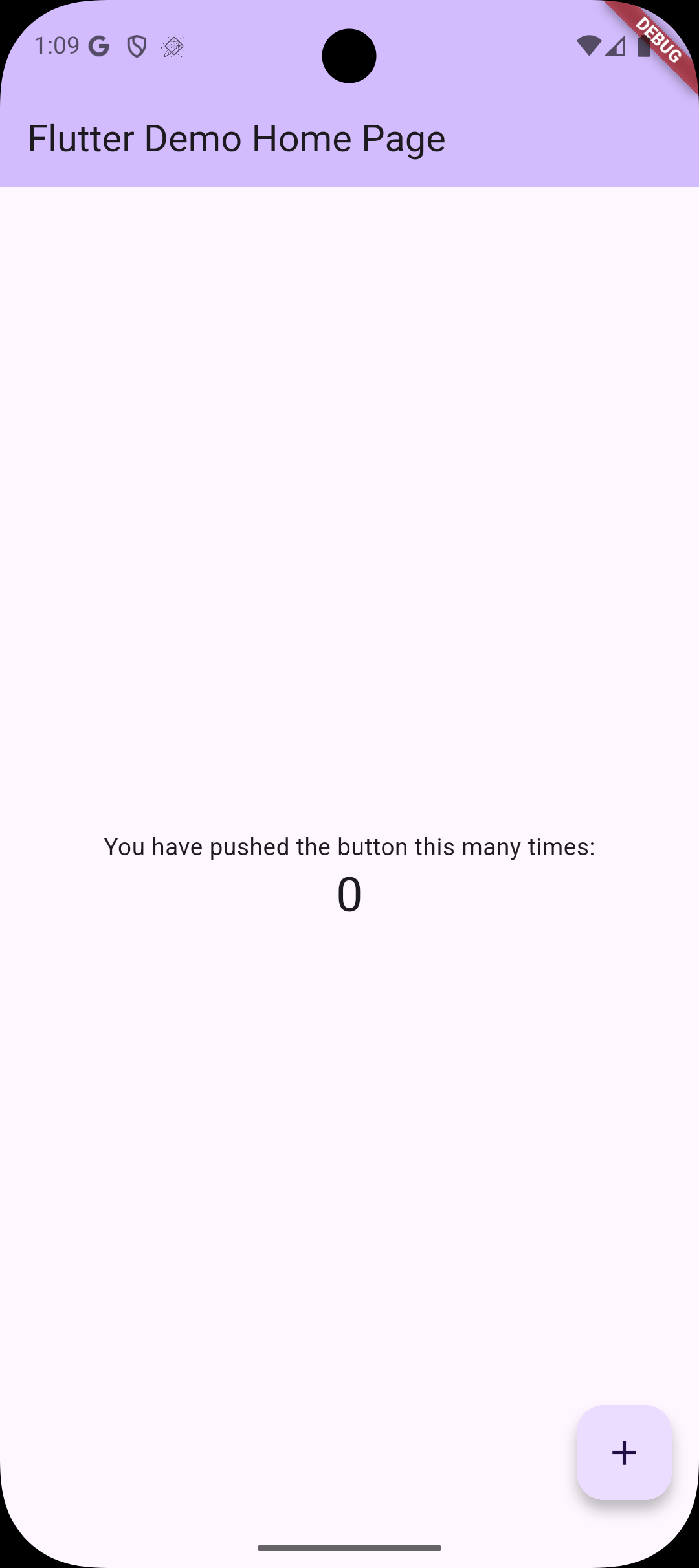
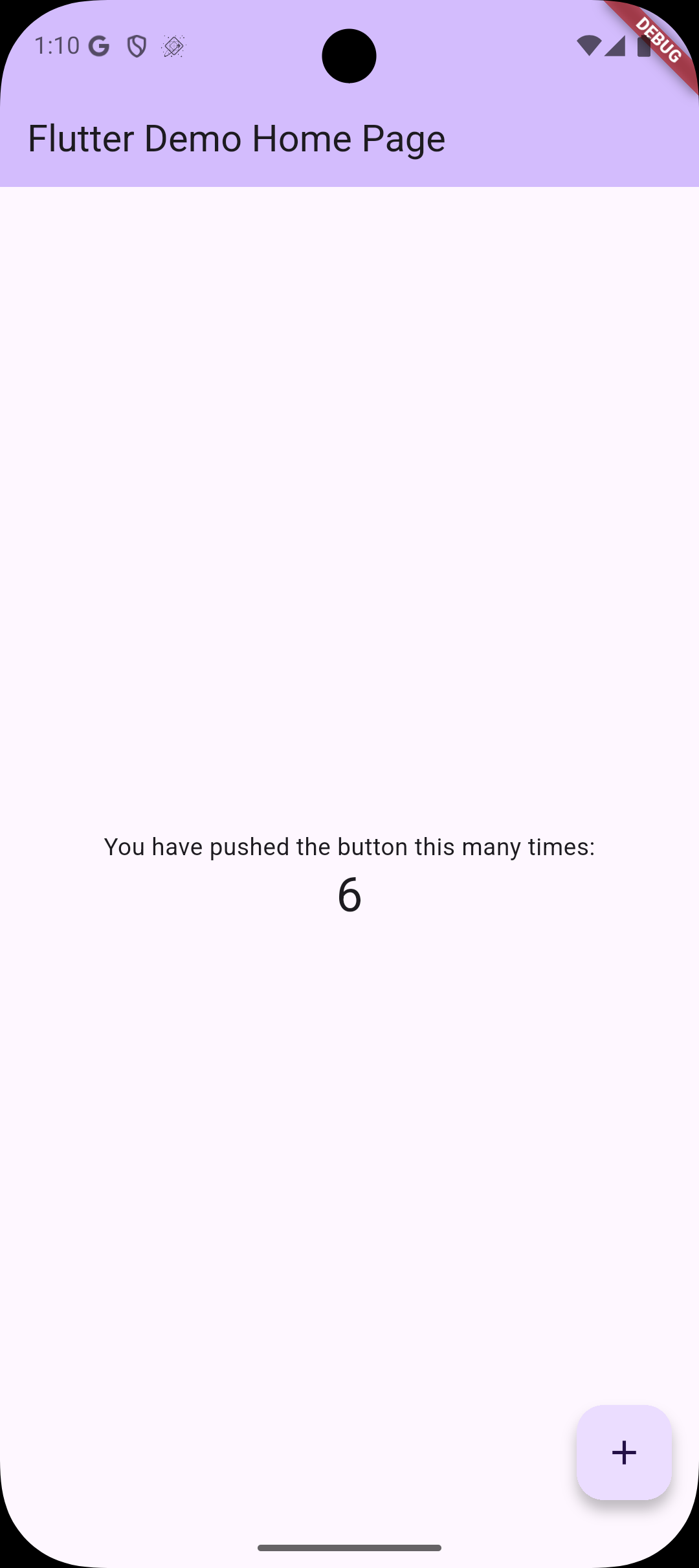
Flutter 프로젝트를 생성하면 자동으로 생성되는 기본 예제 코드입니다.
이 코드는 StatefulWidget 내에서 상태를 직접 변경하며 동작합니다.
이렇게 상태를 변경하는 코드와 UI 코드가 한 클래스 내에 섞여있으면 재사용과 테스트가 어려워지고, 상태를 관리하기 어려워집니다.
import 'package:flutter/material.dart';

void main() {
  runApp(const MyApp());
}

class MyApp extends StatelessWidget {
  const MyApp({super.key});

  @override
  Widget build(BuildContext context) {
    return MaterialApp(
      title: 'Flutter Demo',
      theme: ThemeData(
        colorScheme: ColorScheme.fromSeed(seedColor: Colors.deepPurple),
      ),
      home: const MyHomePage(title: 'Flutter Demo Home Page'),
    );
  }
}

class MyHomePage extends StatefulWidget {
  const MyHomePage({super.key, required this.title});
  final String title;

  @override
  State<MyHomePage> createState() => _MyHomePageState();
}

class _MyHomePageState extends State<MyHomePage> {
  int _counter = 0;

  void _incrementCounter() {
    setState(() {
      _counter++;
    });
  }

  @override
  Widget build(BuildContext context) {
    return Scaffold(
      appBar: AppBar(
        backgroundColor: Theme.of(context).colorScheme.inversePrimary,
        title: Text(widget.title),
      ),
      body: Center(
        child: Column(
          mainAxisAlignment: MainAxisAlignment.center,
          children: <Widget>[
            const Text('You have pushed the button this many times:'),
            Text(
              '$_counter',
              style: Theme.of(context).textTheme.headlineMedium,
            ),
          ],
        ),
      ),
      floatingActionButton: FloatingActionButton(
        onPressed: _incrementCounter,
        tooltip: 'Increment',
        child: const Icon(Icons.add),
      ),
    );
  }
}
4. Riverpod 적용 코드
1) 프로젝트 구조
lib/
├── main.dart
└── pages/
    └── home/
        └── home_page.dart				// View (UI)
        └── home_view_model.dart		// View Model (상태)
2) flutter_riverpod 패키지 설치
flutter pub add flutter_riverpod
3) ProviderScpe 적용
void main() {
  runApp(ProviderScope(child: MyApp()));
}
ProviderScope을 적용하여 Riverpod의 상태를 앱 전역에서 관리할 수 있도록 합니다.
4) ViewModel 작성
① 상태 관리 클래스 생성
먼저 상태를 관리할 클래스를 생성합니다.
버튼을 클릭하면 카운터 값이 증가하므로 관리해야 할 상태는 정수형의 카운터 값입니다.
관리해야 할 상태가 int타입의 정수형 1개이기 때문에 따로 상태 클래스를 생성하지는 않겠습니다.
② ViewModel 생성
import 'package:flutter_riverpod/flutter_riverpod.dart';

class HomeViewModel extends StateNotifier<int> {
  HomeViewModel() : super(0);

  void increment() {
    state += 1;
  }
}
- StateNotifier<T> : 상태를 관리하는 클래스, T -> 상태
HomeViewModel을 선언 한 후, StateNotifier를 상속받습니다.
제네릭 타입으로는 관리해야 할 상태가 오는데 여기서 관리할 상태는 int타입의 정수(Counter 값)이기 때문에 StateNotifier<int>로 선언합니다.
③ ViewModel Provider 작성
final homeViewModelProvider = StateNotifierProvider<HomeViewModel, int>(
  (ref) => HomeViewModel(),
);- StateNotifierProvider<HomeViewModel, int> : HomeViewModel과 상태를 연결하는 Provider
- ref : 다른 Provider를 참조할 수 있도록 주입되는 인자
Provider는 상태나 객체를 전역에서 공유할 수 있게 해주는 Riverpod의 핵심 구조입니다.
다양한 곳에서 상태를 읽고, 변경하기 때문에 Provider를 사용합니다.
5) View에서 사용
import 'package:flutter/material.dart';
import 'package:flutter_riverpod/flutter_riverpod.dart';
import 'package:flutter_riverpod_counter/pages/home/home_view_model.dart';

// ConsumerWidget으로 변경
class HomePage extends ConsumerWidget {
  const HomePage({super.key, required this.title});
  final String title;

  @override
  Widget build(BuildContext context, ref) {

  	// 상태(int)를 구독하고, 상태가 바뀌면 위젯이 자동으로 리빌드
    final counter = ref.watch(homeViewModelProvider);

    // ViewModel을 읽어 상태를 변경할 수 있는 메서드 호출
    final viewModel = ref.read(homeViewModelProvider.notifier);

    return Scaffold(
      appBar: AppBar(
        backgroundColor: Theme.of(context).colorScheme.inversePrimary,
        title: Text(title),
      ),
      body: Center(
        child: Column(
          mainAxisAlignment: MainAxisAlignment.center,
          children: <Widget>[
            const Text('You have pushed the button this many times:'),
            // 상태 값(counter) 출력
            Text('$counter', style: Theme.of(context).textTheme.headlineMedium),
          ],
        ),
      ),
      floatingActionButton: FloatingActionButton(
      	// 버튼 클릭 시 ViewModel의 increment 메서드 호출
        onPressed: () => viewModel.increment(),
        tooltip: 'Increment',
        child: const Icon(Icons.add),
      ),
    );
  }
}
 |
 |
728x90
'Flutter' 카테고리의 다른 글
| [Flutter] mocktail을 이용하여 Unit Test 하기 (mockito vs mocktail) (0) | 2025.05.08 |
|---|---|
| [Flutter] 앱 테스트 유형 (feat. Integration, Unit, Widget) (0) | 2025.05.07 |
| [Flutter] API 키 숨기기 (feat. dotenv) (0) | 2025.04.22 |
| [Flutter] 지역 검색 앱 프로젝트 소개 (0) | 2025.04.22 |
| [Flutter] MVVM 패턴, 앱 아키텍처 가이드 (0) | 2025.04.14 |
