
1. 개요
이번에는 분석한 내용을 바탕으로 나만의 PieChart를 구현해보고자 한다.
2. 데이터 정의
MPAndroidChart에서는 PieEntry를 통해 파이 차트를 그리는데 필요한 데이터를 정의했음을 알 수 있었다.
마찬가지로 나만의 PieEntry를 정의해 보았다.
저번에 Color를 따로 지정하는 게 불편하다고 느껴 PieEntry 데이터 클래스의 필드로 color도 같이 포함하였다.
또한 MPAndroidChart에서는 Color를 Integer 타입으로 정의하였는데 이번에는 Color 타입으로 정의하였다.
data class PieEntry(
    val value: Float,
    val label: String,
    val color: Color,
)
그리고 차트에 사용할 데이터는 이렇게 정의했다.
val sampleData = remember {
    listOf(
        PieEntry(30f, "국밥", Color(0xFFFF6B6B)),
        PieEntry(25f, "초밥", Color(0xFF4ECDC4)),
        PieEntry(20f, "떡볶이", Color(0xFF45B7D1)),
        PieEntry(15f, "치킨", Color(0xFF96CEB4)),
        PieEntry(10f, "연어", Color(0xFFFFEAA7))
    )
}
3. 차트 만들기
1) Canvas와 drawArc로 간단한 파이 조각 만들기
Canvas와 drawArc를 이용해 만들었다.
drawArc는 부채꼴이나 파이 차트 조각을 그릴 때 사용한다.
startAngle은 현재 조각의 시작 각도
sweepAngle은 현재 조각이 차지할 각도
useCenter는 원의 중심과 연결하여 채워진 조각으로 그린다는 뜻이다.
Canvas(modifier = modifier) {
    drawArc(
        color = Color.Gray,
        startAngle = 0f,
        sweepAngle = 50f,
        useCenter = true,
    )
}

2) 간단 원형 차트 만들기
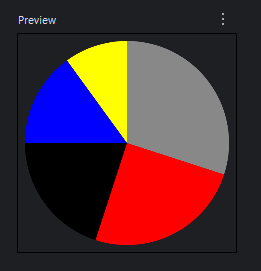
여기서 주의할 점은 sweepAngle의 합이 360도가 되어야 하고,
첫 번째 drawArc의 시작 각도가 0f로 시작하면 3시 방향에서 시작한다.
하지만 나는 12시를 기준으로 첫 번째 카테고리가 만들어지길 원하기 때문에 270f부터 시작했다.
Canvas(modifier = modifier) {
    var currentStartAngle = 270f // 첫 시작 각도를 270도로 설정 (원의 맨 위)

    // 첫 번째 조각
    drawArc(
        color = Color.Gray,
        startAngle = currentStartAngle,
        sweepAngle = 108f, // 30% -> 30/100 * 360 = 108
        useCenter = true,
    )
    currentStartAngle += 108f // 다음 조각의 시작 각도를 업데이트

    // 두 번째 조각
    drawArc(
        color = Color.Red,
        startAngle = currentStartAngle,
        sweepAngle = 90f,  // 25% -> 25/100 * 360 = 90
        useCenter = true,
    )
    currentStartAngle += 90f

    // 세 번째 조각
    drawArc(
        color = Color.Black,
        startAngle = currentStartAngle,
        sweepAngle = 72f, // 20% -> 20/100 * 360 = 72
        useCenter = true,
    )
    currentStartAngle += 72f

    // 네 번째 조각
    drawArc(
        color = Color.Blue,
        startAngle = currentStartAngle,
        sweepAngle = 54f, // 15% -> 15/100 * 360 = 54
        useCenter = true,
    )
    currentStartAngle += 54f

    // 다섯 번째
    drawArc(
        color = Color.Yellow,
        startAngle = currentStartAngle,
        sweepAngle = 36f, // 10% -> 10/100 * 360 = 36
        useCenter = true,
    )
}
3) 파이 차트 만들기
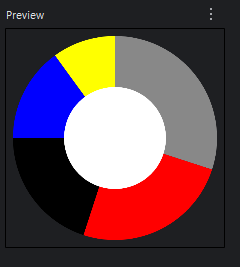
파이차트를 만드는 방법은 간단하다.
원형 차트 중간에 원만 그리면 된다.
Canvas(modifier = modifier) {
    var currentStartAngle = 270f // 첫 시작 각도를 270도로 설정 (원의 맨 위)

    // 첫 번째 조각
    drawArc(
        color = Color.Gray,
        startAngle = currentStartAngle,
        sweepAngle = 108f, // 30% -> 30/100 * 360 = 108
        useCenter = true,
    )
    currentStartAngle += 108f // 다음 조각의 시작 각도를 업데이트

    // 두 번째 조각
    drawArc(
        color = Color.Red,
        startAngle = currentStartAngle,
        sweepAngle = 90f,  // 25% -> 25/100 * 360 = 90
        useCenter = true,
    )
    currentStartAngle += 90f

    // 세 번째 조각
    drawArc(
        color = Color.Black,
        startAngle = currentStartAngle,
        sweepAngle = 72f, // 20% -> 20/100 * 360 = 72
        useCenter = true,
    )
    currentStartAngle += 72f

    // 네 번째 조각
    drawArc(
        color = Color.Blue,
        startAngle = currentStartAngle,
        sweepAngle = 54f, // 15% -> 15/100 * 360 = 54
        useCenter = true,
    )
    currentStartAngle += 54f

    // 다섯 번째
    drawArc(
        color = Color.Yellow,
        startAngle = currentStartAngle,
        sweepAngle = 36f, // 10% -> 10/100 * 360 = 36
        useCenter = true,
    )

    // Canvas의 가로/세로 중 작은 값의 절반이 원의 반지름
    val chartRadius = size.minDimension / 2f
    // Canvas의 정확한 중심 좌표 (원의 중심)
    val centerOffset = Offset(center.x, center.y)

    // 중앙 원의 반지름은 전체 원의 반지름의 반 (중앙 원의 크기)
    val holeRadius = chartRadius * 0.5f

    drawCircle(
        color = Color.White,
        radius = holeRadius,
        center = centerOffset,
    )
}
4) 중복 코드 제거
이전까지는 파이 차트의 각 조각을 일일이 drawArc로 5번 반복해서 그렸다.
이는 비효율적이기 때문에 반복문을 이용하여 파이 차트를 구현했다.
package com.example.mypiechart.ui.chart

import androidx.compose.foundation.Canvas
import androidx.compose.foundation.layout.Column
import androidx.compose.foundation.layout.fillMaxSize
import androidx.compose.foundation.layout.fillMaxWidth
import androidx.compose.foundation.layout.height
import androidx.compose.foundation.layout.padding
import androidx.compose.material3.MaterialTheme
import androidx.compose.material3.Text
import androidx.compose.runtime.Composable
import androidx.compose.runtime.remember
import androidx.compose.ui.Modifier
import androidx.compose.ui.graphics.Color
import androidx.compose.ui.tooling.preview.Preview
import androidx.compose.ui.unit.dp
import com.example.mypiechart.data.PieEntry

@Composable
fun CustomPieChartScreen(
    modifier: Modifier = Modifier,
) {
    val sampleData = remember {
        listOf(
            PieEntry(30f, "국밥", Color(0xFFFF6B6B)),
            PieEntry(25f, "초밥", Color(0xFF4ECDC4)),
            PieEntry(20f, "떡볶이", Color(0xFF45B7D1)),
            PieEntry(15f, "치킨", Color(0xFF96CEB4)),
            PieEntry(10f, "연어", Color(0xFFFFEAA7))
        )
    }
    Column(
        modifier = modifier
            .fillMaxSize()
    ) {
        Text(
            text = "내가 먹고 싶은 음식",
            style = MaterialTheme.typography.headlineSmall,
            modifier = Modifier.padding(bottom = 16.dp)
        )

        MyCustomComposePieChart(
            data = sampleData,
            modifier = Modifier
                .fillMaxWidth()
                .height(400.dp)
        )
    }
}

@Composable
fun MyCustomComposePieChart(
    data: List<PieEntry>,
    modifier: Modifier = Modifier
) {
    Canvas(modifier = modifier) {
        val totalValue = data.sumOf { it.value.toDouble() }.toFloat()
        var startAngle = 270f

        val chartRadius = size.minDimension / 2f

        data.forEach { entry ->
            val sweepAngle = (entry.value / totalValue) * 360f
            drawArc(
                color = entry.color,
                startAngle = startAngle,
                sweepAngle = sweepAngle,
                useCenter = true,
            )
            startAngle += sweepAngle
        }

        val holeRadius = chartRadius * 0.5f
        drawCircle(color = Color.White, radius = holeRadius, center = center)
    }
}

@Preview(showBackground = true)
@Composable
fun Preview() {
    CustomPieChartScreen()
}

5) 선과 라벨 추가
차트만 있으면 허전하니 선과 라벨도 추가했다.
@Composable
fun MyCustomComposePieChart(
    data: List<PieEntry>,
    modifier: Modifier = Modifier
) {
    Canvas(modifier = modifier) {
        // 차트 설정
        val totalValue = data.sumOf { it.value.toDouble() }.toFloat()
        var startAngle = 270f

        // 중앙 원
        val chartRadius = size.minDimension / 2f
        val holeRadius = chartRadius * 0.5f

        data.forEach { entry ->
            val sweepAngle = (entry.value / totalValue) * 360f
            val percentage = (entry.value / totalValue * 100)
            val formattedPercentage = "%.1f".format(percentage)
            val midAngle = (startAngle + sweepAngle / 2f) % 360f

            drawArc(
                color = entry.color,
                startAngle = startAngle,
                sweepAngle = sweepAngle,
                useCenter = true,
            )

            // 연결 선과 라벨 그리기
            drawLabelWithLine(
                text = "${entry.label}\n${formattedPercentage}%",
                angle = midAngle,
                innerRadius = chartRadius, // 선 시작점 (파이 차트의 반지름)
                outerRadius = chartRadius * 1.2f, // 선이 끝나는 점
                color = entry.color,
            )

            startAngle += sweepAngle
        }

        drawCircle(color = Color.White, radius = holeRadius, center = center)
    }
}

private fun DrawScope.drawLabelWithLine(
    text: String,
    angle: Float,
    innerRadius: Float,
    outerRadius: Float,
    color: Color,
) {
    val angleInRadians = toRadians(angle.toDouble()).toFloat()

    val textPaint = Paint().asFrameworkPaint().apply {
        isAntiAlias = true
        textSize = 14.sp.toPx()
        textAlign = android.graphics.Paint.Align.LEFT
    }

    // 선의 시작점
    val lineStartX = center.x + innerRadius * cos(angleInRadians)
    val lineStartY = center.y + innerRadius * sin(angleInRadians)

    // 선의 끝점
    val lineEndX = center.x + outerRadius * cos(angleInRadians)
    val lineEndY = center.y + outerRadius * sin(angleInRadians)

    // 선 그리기
    drawLine(
        color = color,
        start = Offset(lineStartX, lineStartY),
        end = Offset(lineEndX, lineEndY),
        strokeWidth = 2.dp.toPx()
    )

    // 텍스트 위치 계산
    val lines = text.split("\n")
    val textPadding = 8.dp.toPx()
    val lineHeight = textPaint.fontSpacing

    val textAnchorX: Float
    val textAnchorY: Float = lineEndY - (lines.size - 1) * lineHeight / 2

    if (angle > 90f && angle < 270f) {
        textAnchorX = lineEndX - textPadding
        textPaint.textAlign = android.graphics.Paint.Align.RIGHT
    } else {
        textAnchorX = lineEndX + textPadding
        textPaint.textAlign = android.graphics.Paint.Align.LEFT
    }


    lines.forEachIndexed { index, line ->
        drawContext.canvas.nativeCanvas.drawText(
            line,
            textAnchorX,
            textAnchorY + index * lineHeight,
            textPaint
        )
    }
}

3. 마무리
파이 차트를 그리는 것은 생각보다 어렵지 않았다.
다만 선과 라벨을 추가하는 부분부터 난이도가 급격히 상승했다.
각도를 계산해서 선을 그리고 텍스트의 위치를 지정하는 과정이 매우 까다로웠다.
특히 텍스트 위치를 지정하는 곳에서 버그가 나서 하나하나 디버깅으로 값을 보면서 확인했다.
그래도 불필요한 라이브러리 없이 Compose만으로 커스텀 UI를 만들어본 것은 처음이라 재밌었다.
최종 코드는 아래 있어요.
'Android' 카테고리의 다른 글
| [Android] ViewModel에서 Context 없이 예외 처리 하기 (1) | 2025.08.01 |
|---|---|
| [Android] MPAndroidChart의 PieChart를 분석해서 나만의 CustomPieChart 만들기 (1) (3) | 2025.07.18 |
